











Dealing with a slow computer is frustrating. Whether you’re compiling code, running virtual machines, analyzing data, or just trying to browse documentation, sluggish performance pc issues can significantly hinder your productivity and break your focus. Waiting for applications to load or the system to respond eats up valuable time and can turn simple tasks into chores. Fortunately, there are numerous ways to speed up computer performance on Windows.
This guide provides actionable tips to optimize pc responsiveness, ranging from simple maintenance routines and software adjustments to more impactful hardware upgrades. We’ll cover how to improve computer performance and get your Windows system running smoothly again.
Basic Windows Maintenance & Quick Fixes For A Faster PC
Before diving into complex configurations, start with the basics. These simple steps can often yield noticeable improvements.
Keep Windows & Drivers Updated
Microsoft regularly releases Windows updates that include performance enhancements, bug fixes, and security patches. Outdated device drivers can also cause slowdowns or compatibility issues. Keeping both up-to-date is crucial for optimal performance.
How to Check for Windows Updates (Windows 11 Example):
- Click the Start button.
- Go to Settings > Windows Update.
- Click Check for updates.
- If updates are available, select Install now. Windows will also search for driver updates during this process.
- Check Advanced options > Optional updates for any non-critical driver updates that might help.
- Restart your PC after updates are installed.
Restart Regularly & Limit Open Apps
This might sound obvious, but simply restarting your computer frequently clears temporary files and resets running processes, freeing up memory (RAM). Many users leave their PCs in Sleep mode for days or weeks, allowing background processes and memory usage to accumulate, contributing to a slow computer.
Furthermore, having too many applications, browser tabs, and background processes running simultaneously consumes CPU cycles and RAM.
- Restart: Make it a habit to restart your PC daily or at least several times a week. Select Start > Power > Restart.
- Close Unused Apps: Actively close applications, browser windows (especially those with many tabs), and utilities you aren’t currently using.
Manage Startup Programs
Many applications configure themselves to launch automatically when Windows starts. While convenient for frequently used programs, having too many startup items significantly increases boot time and consumes resources right from the beginning. Disabling unnecessary ones can make your computer faster.
How to Manage Startup Programs (Task Manager):
- Press
Ctrl + Shift + Escto open Task Manager (or right-click the taskbar and select Task Manager). - Click on the Startup apps tab (or Startup tab in older Windows versions).
- Review the list of programs. Pay attention to the “Startup impact” column if available.
- Right-click on any program you don’t need to start automatically and select Disable. Be cautious not to disable essential system or security software.
- Restart your PC to see the effect.
Background Apps & Services
Beyond startup items, Windows runs background apps and services that may not be necessary. Disabling these frees up resources:
- Go to Settings > Apps > Installed apps.
- Select an app > Advanced options.
- Under Background apps permissions, set it to Never.
For services:
- Press Win + R, type msconfig, and press Enter.
- Under the Services tab, check Hide all Microsoft services.
- Carefully disable third-party services you don’t need.
Be cautious, avoid turning off essential drivers, networking, or security services.
Important System Optimization Techniques
Beyond basic maintenance, you can tweak Windows settings and clean up your system to optimize pc performance.
Clean Up Your Hard Drive
A nearly full hard drive (especially the system drive, usually C:) can significantly slow down Windows. Temporary files, leftover installation data, and unused programs all contribute to disk clutter.
Use Storage Sense or Disk Cleanup: Windows includes tools to help you reclaim disk space.
- Storage Sense (Windows 10/11): Automates cleanup.
- Go to Settings > System > Storage.
- Toggle Storage Sense on.
- Click on Storage Sense (or “Configure Storage Sense or run it now”) to customize settings (e.g., how often it runs, when Recycle Bin files are deleted).
- You can also manually clean Temporary files from the main Storage screen. Select the files you want to remove (like Recycle Bin, Downloads, Temporary Internet Files, Thumbnails) and click Remove files.
- Disk Cleanup (Older tool, still available):
- Search for “Disk Cleanup” in the Start menu and run it.
- Select the drive you want to clean (usually C:).
- Check the boxes for file types you want to delete.
- Click Clean up system files for more options (like removing old Windows update files or previous Windows installations – be careful with the latter).
- Click OK and then Delete Files.
Uninstall Unused Software/Bloatware: Remove applications you no longer need, especially pre-installed “bloatware” that often comes with new PCs.
- Go to Settings > Apps > Installed apps (or Apps & features).
- Sort by size or install date to find candidates for removal.
- Click the three dots (…) next to an app (or click the app itself) and select Uninstall.
Consider Moving Large Files: If your system drive is full but you have large files (photos, videos, documents) you want to keep, move them to a secondary internal drive, an external hard drive, or cloud storage.
Disk Defragmentation vs SSDs
Windows includes built-in tools for keeping your drives optimized. On older PCs with mechanical hard drives (HDDs), periodic defragmentation helps organize data for faster access. However, if your system uses a Solid-State Drive (SSD), defragmentation is unnecessary and should be avoided. Instead, Windows automatically runs the TRIM command, which maintains SSD efficiency.
To check:
- Search for “Defragment and Optimize Drives” in the Start menu.
- Select your drive and click Optimize.
- If it’s an HDD, this will run defrag. If it’s an SSD, Windows will run TRIM instead.
Adjust Windows Appearance & Effects
Windows uses various visual effects (animations, shadows, transparency) to make the interface look modern. However, these effects consume system resources. Disabling them can noticeably improve computer performance, especially on older or less powerful hardware.
How to Adjust Visual Effects:
- Search for “performance” in the Start menu and select Adjust the appearance and performance of Windows.
- Go to the Visual Effects tab.
- Select Adjust for best performance. This disables all effects.
- Alternatively, choose Custom and manually uncheck effects you don’t need (e.g., “Animate windows when minimizing and maximizing”, “Show shadows under windows”).
- Click Apply and OK.
Optimize System Settings
- Check Page File Management: The paging file (virtual memory) is disk space Windows uses as extra RAM. Letting Windows manage it automatically is usually best.
- Search for “advanced system settings” and select View advanced system settings.
- Under the Advanced tab, in the Performance section, click Settings.
- Go to the Advanced tab in Performance Options and click Change under Virtual memory.
- Ensure Automatically manage paging file size for all drives is checked. If not, check it and restart.
- Pause OneDrive Sync (If Applicable): If you use OneDrive, constant syncing can sometimes impact performance, especially during large uploads/downloads. Try pausing it temporarily to see if it helps. Right-click the OneDrive icon in the system tray > Pause syncing. Remember to resume it later.
- Disable Transparency Effects: A minor tweak, but disabling transparency can save a small amount of resources. Go to Settings > Personalization > Colors and toggle Transparency effects off.
Task Manager Resource Monitoring
If your PC still feels sluggish, Task Manager can help you pinpoint what’s slowing it down.
- Press Ctrl + Shift + Esc to open Task Manager.
- On the Processes tab, check CPU, Memory, Disk, and GPU columns.
- Identify programs consuming excessive resources.
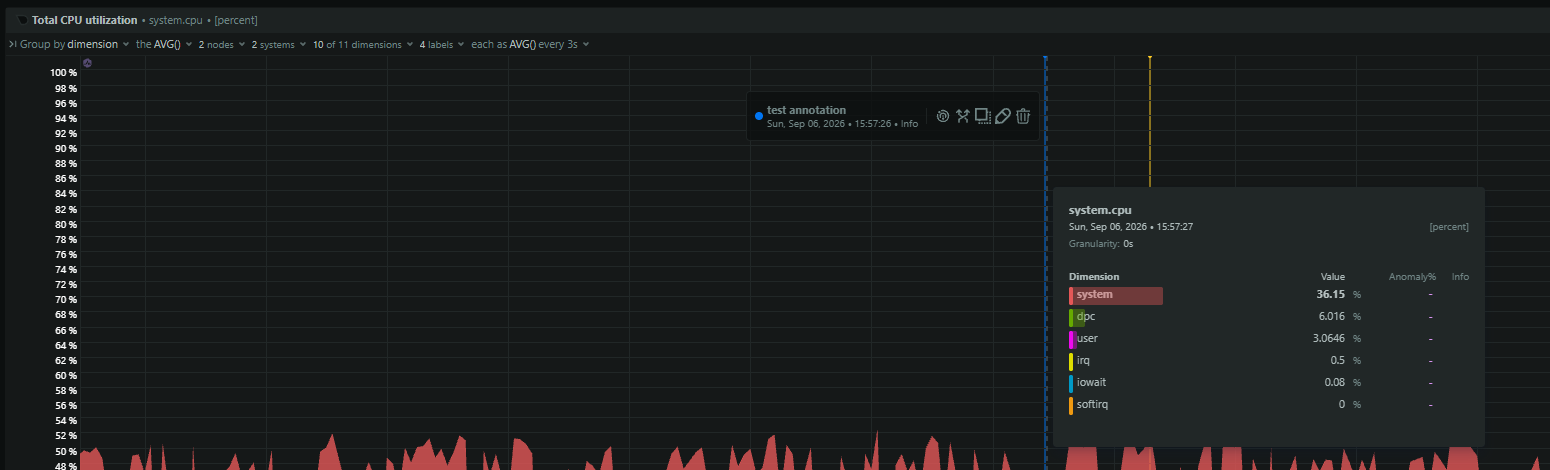
If one app is constantly maxing out CPU or memory, consider closing it, limiting background processes, or upgrading your hardware. For advanced, ongoing monitoring across multiple PCs, tools like Netdata provide real-time performance visibility.
Power Settings
Windows power plans balance performance and energy use, but switching to a high-performance mode can deliver speed improvements.
- Go to Settings > System > Power & battery > Power mode (Windows 11) or Control Panel > Power Options (Windows 10).
- Choose Best performance or High performance.
This ensures your CPU and system components are allowed to run at their maximum potential, which can make a noticeable difference on laptops and desktops.
Keep Windows Secure & Stable
Malware and system instability can severely degrade performance.
Scan For Malware & Viruses
Malicious software running in the background is a common cause of a suddenly slow computer. Use reliable antivirus software. Windows Security (formerly Windows Defender) is built-in and effective.
- Go to Settings > Privacy & security > Windows Security > Open Windows Security.
- Select Virus & threat protection.
- Ensure protection updates are current (Check for updates).
- Run a Quick scan. If issues are suspected, run a Full scan or Microsoft Defender Antivirus (offline scan) (found under Scan options) for a deeper check.
Use System Restore (If Necessary)
If performance issues started recently after installing an app, driver, or update, System Restore might help. It reverts system files and settings to an earlier point in time without affecting your personal files.
- Search for “create a restore point” and open it.
- Click System Restore.
- Choose a restore point dated before the problems began.
- Follow the prompts. Your PC will restart. Note: System Protection must be turned on for restore points to be created.
Windows Reset / Fresh Install
If nothing else resolves the slowdown, consider resetting Windows. This restores system performance by removing unnecessary apps and settings while keeping your files intact.
How to Reset:
- Go to Settings > System > Recovery.
- Under Reset this PC, click Get started.
- Choose Keep my files or Remove everything (for a clean slate).
A reset often resolves deep-rooted performance issues caused by corrupted system files or misconfigured settings.
Browser Optimization For High Speed
Since so much work happens in a web browser, optimizing it is key.
Clear Cache & Cookies
Accumulated temporary internet files and site data can slow down browsing. Find the “Clear browsing data” option in your browser’s settings (e.g., Chrome: Settings > Privacy and security > Clear browsing data; Edge: Settings > Privacy, search, and services > Clear browsing data).
Manage Extensions
Too many browser extensions consume memory and CPU. Disable or remove extensions you don’t actively use.
Consider A Different Browser
If your current browser feels sluggish, try an alternative (Edge, Chrome, Firefox, Brave) to see if it performs better on your system.
Browser-Specific Speed Tweaks
For smoother browsing, make sure your browser is fully optimized:
- Enable or Disable Hardware Acceleration: Some systems benefit from enabling it, while others run faster with it off. In Chrome/Edge, go to Settings > System > Use hardware acceleration when available. Toggle and test both ways.
- Keep Your Browser Updated: Updates often include performance improvements.
- Limit Tabs: Too many open tabs consume memory, even in the background. Use tab suspension extensions if you keep many open.
Hardware Upgrades For Major Windows Performance Boost
If software tweaks aren’t enough, your hardware might be the bottleneck. These upgrades offer the most significant performance gains.
Upgrade Your RAM
RAM (Random Access Memory) is your computer’s short-term working memory. If you frequently multitask, run memory-intensive applications (like IDEs, databases, VMs, photo/video editors), or find your system constantly slowing down under load, insufficient RAM is a likely culprit. Upgrading can dramatically improve computer performance.
- Check Usage: Open Task Manager (
Ctrl+Shift+Esc), go to the Performance tab, and click Memory. If your memory usage is consistently high (e.g., > 80-90%) during normal work, you’ll benefit from more RAM. - Check Capacity/Type: Task Manager also shows your total installed RAM, speed, and slots used. Ensure you buy compatible RAM (type like DDR4/DDR5, speed, form factor for laptop/desktop). Windows 10/11 generally benefits from at least 16GB for demanding tasks, with 32GB or more being ideal for developers or power users.
Switch To An SSD (Solid-State Drive)
This is arguably the single most impactful upgrade you can make to speed up computer responsiveness. If your PC still uses a traditional mechanical Hard Disk Drive (HDD) for its primary operating system drive, replacing it with an SSD will make a night-and-day difference.
- Benefits: SSDs have no moving parts, offering vastly faster read/write speeds than HDDs. This results in quicker boot times, faster application loading, and a generally snappier system feel.
- Check Current Drive: Task Manager’s Performance tab shows your disk type (Disk 0, Disk 1, etc.). It will indicate SSD or HDD.
- Types: NVMe SSDs (which use the M.2 slot) are generally faster than SATA SSDs, but both offer huge gains over HDDs. Ensure compatibility with your motherboard or laptop.
A slow computer doesn’t have to be a permanent fixture. By systematically applying these tips—starting with basic maintenance like updates and restarts, moving through software optimizations like managing startup programs and cleaning disks, adjusting visual settings, ensuring security, and finally considering hardware upgrades like adding RAM or switching to an SSD—you can significantly speed up computer performance.
Regularly performing these optimizations will help maintain a fast windows experience, boosting your productivity and reducing frustration. Keeping your system lean and responsive allows you to focus on your core tasks, whether developing software, managing infrastructure, or analyzing complex datasets.
For deeper insights into system performance, especially across multiple machines or complex infrastructure, consider comprehensive monitoring solutions. Discover how Netdata provides real-time, granular visibility into your systems.
How To Speed Up Windows FAQs
Why Is My Windows So Slow All Of A Sudden?
Sudden slowdowns are often caused by a background app, malware, or a recent update. Check Task Manager for resource-heavy apps, run a malware scan, and apply Windows updates.
Does Adding More RAM Make Windows Faster?
Yes. If your memory usage is constantly high, upgrading RAM improves multitasking, reduces lag, and allows apps to run more smoothly.
Is Windows 11 Faster Than Windows 10?
Performance is similar in most cases, but Windows 11 includes optimizations for newer hardware (like better memory management and SSD handling). Older PCs may not see a big difference.
Will An SSD Make My PC Boot Faster?
Absolutely. Switching from an HDD to an SSD is one of the most effective upgrades, often reducing boot times from minutes to seconds.
Should I Defrag My SSD?
No. SSDs do not need defragmentation. Windows automatically maintains them using TRIM, which keeps them fast and healthy.