













A container alert for high CPU is easy to generate but hard to interpret. Docker reports CPU as a percentage of total host cores, so a value of 340% on an 8-core machine simply means the container is using 3.4 cores. That might be expected for a multi-threaded workload, or it might signal a runaway process, CFS throttling, or a cryptominer. This guide shows how to distinguish legitimate compute from pathological behavior, and how to fix the root cause without restarting the container blindly.
What this means
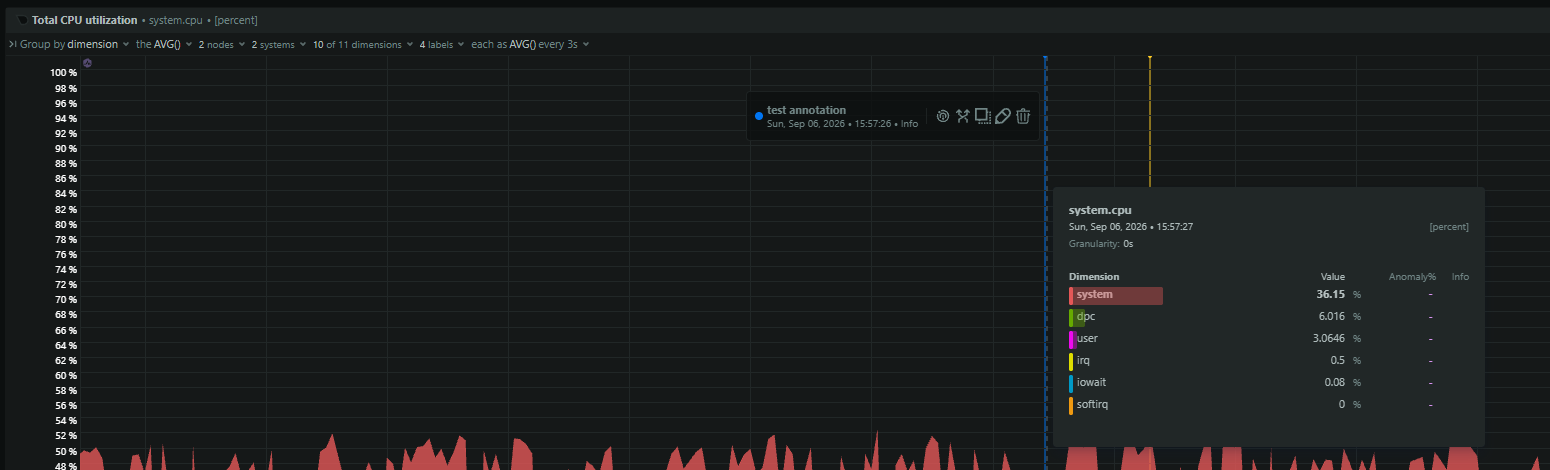
Docker CPU metrics are cgroup-accounted nanoseconds of CPU time scaled to the host. The docker stats percentage uses (cpuDelta / systemDelta) * onlineCPUs * 100.0, which is why values above 100% are normal on multi-core hosts. The metric blends user time, which is application code execution, and system time, which is kernel syscall overhead. High system time usually means I/O pressure or excessive syscall rates, not raw computation.
Containers with CFS quotas also experience throttling when they burst past their limit within the 100ms scheduling period. Throttling causes latency spikes that do not always show up as high average CPU. Transient spikes from JVM JIT compilation or garbage collection are normal. Persistent single-process saturation with suspicious network activity is not.
Common causes
| Cause | What it looks like | First thing to check |
|---|---|---|
| Runaway process or infinite loop | Sustained high user CPU concentrated in one or a few PIDs | docker top <container> to find the heavy PID |
| CFS quota too low | Moderate average CPU but high tail latency and slow responses | cpu.stat for nr_throttled and throttled_usec |
| JVM or runtime GC/JIT spike | Periodic CPU spikes that correlate with memory pressure | Container memory usage alongside CPU |
| Cryptominer or compromise | Persistent near-100% CPU on a single named process with unusual outbound connections | Process name and network destinations inside the container |
| Memory pressure causing indirect CPU burn | CPU climbs as memory approaches limit; system time may rise | docker stats memory usage vs limit, dmesg for OOM |
| Heavy I/O or syscall load | High system CPU relative to user CPU | pidstat or cgroup cpuacct.stat (v1) / cpu.stat (v2) for system vs user time |
Quick checks
# Check CPU percentages across all containers
docker stats --no-stream --format "table {{.Name}}\t{{.CPUPerc}}\t{{.MemUsage}}"

# List processes inside the container
docker top <container_name>

# Inspect CPU quota and period configured for the container
docker inspect --format 'CpuQuota={{.HostConfig.CpuQuota}} CpuPeriod={{.HostConfig.CpuPeriod}}' <container_name>

# Check CFS throttling metrics (cgroup v2 path shown; v1 paths differ)
CONTAINER_ID=$(docker inspect --format '{{.Id}}' <container_name>)
cat /sys/fs/cgroup/system.slice/docker-${CONTAINER_ID}.scope/cpu.stat

# Break down user vs system CPU for the container's PID on the host
CONTAINER_PID=$(docker inspect --format '{{.State.Pid}}' <container_name>)
pidstat -p ${CONTAINER_PID} 1 5

# Look for suspicious outbound connections inside the container
docker exec <container_name> ss -tn

# Verify docker stats is not returning all zeros (OpenWrt 24.10.1 cgroup v2 bug)
docker stats --no-stream --format '{{.Name}}\t{{.CPUPerc}}' | head -n 5
If every container shows exactly 0.00% CPU and 0B memory while workloads are clearly busy, and you are on OpenWrt 24.10.1 with both cgroup-mount and cgroup-tools installed on cgroup v2, remove both packages: their coexistence creates a mixed cgroup environment that breaks stats.
How to diagnose it
flowchart TD
    A[Alert: high container CPU] --> B{Metric valid?}
    B -->|All zero| C[Check OpenWrt cgroup packages]
    B -->|Above 100%| D[Normal on multi-core]
    A --> E{User or system?}
    E -->|System| F[Investigate I/O]
    E -->|User| G[Identify top PID]
    G --> H{Throttled?}
    H -->|Yes| I[Raise CFS quota]
    H -->|No| J{Memory pressure?}
    J -->|Yes| K[Fix memory limit or leak]
    J -->|No| L{Suspicious?}
    L -->|Yes| M[Cryptominer]
    L -->|No| N[Legitimate workload]
Validate the CPU reading. On multi-core hosts,
docker statscan report well over 100%. A reading of 250% means 2.5 cores are busy, which is normal for a threaded application. If every running container suddenly shows exactly 0.00% CPU on OpenWrt 24.10.1 with cgroup v2, check whether bothcgroup-mountandcgroup-toolsare installed; their coexistence has been reported to create a mixed cgroup environment that breaks stats. Remove both and re-test. If the numbers are non-zero and proportionate to core count, the metric is real. Move to step 2.Split user time from system time. High CPU in
docker statsis a single blended number. Usepidstat -p <container_PID> 1 5on the host, or readcpuacct.stat(cgroup v1) orcpu.stat(cgroup v2) in the container’s cgroup, to see the user/system split. If system time dominates, the container is not compute-bound. It is generating syscalls, doing heavy I/O, or writing logs. Go to the I/O fixes section. If user time dominates, the application itself is burning cycles. Go to step 3.Identify the offending process. Run
docker top <container>to list processes without entering the container. If the image includesps, rundocker exec <container> ps -eo pid,cmd,%cpu --sort=-%cpu. A single PID consuming nearly all CPU points to a tight loop, a long-running calculation, or a cryptominer. Multiple PIDs sharing the load suggests a legitimate multi-threaded workload or a runtime with many GC or compiler threads. Go to step 4.Check for CFS throttling. Even moderate CPU percentages can hide severe throttling. Read the container’s cgroup
cpu.stat. On cgroup v2 the path is/sys/fs/cgroup/system.slice/docker-<ID>.scope/cpu.stat. Look atnr_periods,nr_throttled, andthrottled_usec. Calculate the throttle percentage:nr_throttled / nr_periods * 100. Sustained values above 5% will degrade tail latency. If throttling is present, the fix is to raise the quota or change the limit. If throttling is absent, go to step 5.Correlate with memory pressure. Run
docker stats --no-streamand compare memory usage to the container limit. If memory is above 80% of its limit and CPU is simultaneously high, the runtime is likely thrashing in GC or retrying allocations. Check kernel logs (dmesg | grep -i oom) for OOM events. If memory pressure is present, raise the limit or fix the leak. If memory is comfortable, go to step 6.Rule out compromise. Cryptominers run as persistent single processes with names like
sysupdate,miner64, orxmrig. Inside the container, runss -tnto inspect outbound connections. Connections to non-RFC1918 IPs on ports 3333, 4444, 5555, or 14444 are a strong indicator. If you find one, isolate the container, rebuild the image from a trusted source, and audit the supply chain. If the process and network activity look legitimate, go to step 7.Assess host-level saturation. A container with no CPU limit can consume all available host cores. Check host CPU utilization separately. If the host is at 100% and multiple containers are competing, you have an oversubscription problem. Apply limits or spread workloads. If the host has idle cores, the container simply needs the resources it is requesting.
Metrics and signals to monitor
| Signal | Why it matters | Warning sign |
|---|---|---|
| Container CPU usage (user + system) | Distinguishes compute from syscall overhead | Sustained usage above 80% of limit or historical baseline |
Container CPU throttling (nr_throttled / nr_periods) | Reveals hidden latency from CFS quotas | Throttle percentage above 5% on latency-sensitive workloads |
| Container memory usage vs limit | Memory pressure causes indirect CPU burn via GC | Memory above 80% of limit with climbing CPU |
| Container network connections | Cryptominers phone home to pool servers | Outbound connections to ports 3333, 4444, 5555, or 14444 |
| User vs system CPU breakdown | System time indicates I/O bottlenecks, not code efficiency | System CPU above 30% of total container CPU |
| Container PID count | Fork bombs or thread leaks consume CPU | PID count growing without a traffic increase |
Fixes
If the cause is a runaway process or infinite loop
Identify the PID with docker top or docker exec ps. If it is not the container’s main workload, kill it inside the container. If it is the main workload, inspect application logs for recursion or retry storms. Restarting the container without a code or config change usually recreates the loop.
If the cause is CFS throttling
Raise the CPU quota with docker update --cpus <value>, or adjust --cpus on the next deployment. For latency-sensitive services, consider --cpuset-cpus to pin to physical cores instead of relying solely on CFS bandwidth. Note that --cpuset-cpus restricts which cores the container uses but does not cap total CPU time. Combine it with a quota if you need both pinning and limits.
If the cause is GC or JIT pressure
Give the runtime more memory headroom. For JVM containers, set -Xmx to roughly 75% of the container memory limit and cap metaspace and code cache explicitly. If the spikes are transient JIT warmups, they will subside within minutes of startup. If they are periodic GC storms, change the collector or heap sizing.
If the cause is a cryptominer
Isolate the container. Check docker top and ss -tn for the indicators above. Do not attempt to clean the container in place. Terminate it, remove the image, and rebuild from a verified base image. Rotate any credentials that the container may have accessed.
If the cause is memory pressure
Increase the container memory limit or fix the leak. Once memory pressure drops, the indirect CPU burn from GC thrashing and retry loops usually disappears immediately.
If the cause is high system CPU from I/O
Move high-volume logs or temp files off the overlay2 writable layer and onto a volume. Reduce syscall rates by batching writes or switching to a more efficient log driver.
Prevention
- Monitor
nr_throttledandthrottled_usec, not just CPU percentage. - Set CPU limits based on burst behavior, not average load. Remember that multi-threaded GC can consume a full CFS period in milliseconds.
- Monitor memory alongside CPU to catch GC thrashing early.
- Configure log rotation to prevent I/O-driven system CPU spikes.
- Audit images before deployment. Pin to digests and scan for vulnerabilities.
- On high-density hosts, corroborate
docker statswith direct cgroup reads. The tool’s accuracy degrades when many containers are present because the host/proc/statread and container cgroup read happen at slightly different wall-clock times.
How Netdata helps
- Per-container CPU usage and throttle metrics collected directly from cgroups.
- User vs system CPU breakdown per container to spot syscall-heavy workloads.
- Correlation with container memory usage on the same charts to identify GC-induced CPU spikes.
- Alerts on sustained container CPU and throttling percentage.
Related guides
- Docker container high memory usage: how to diagnose it
- Docker CPU throttling: the hidden cause of container latency
- Docker container memory leak: how to find one and prove it
- Docker container keeps restarting: causes, checks, and fixes
- Docker container running but unhealthy: how to diagnose health check failures
- Docker monitoring checklist: the signals every production host needs