










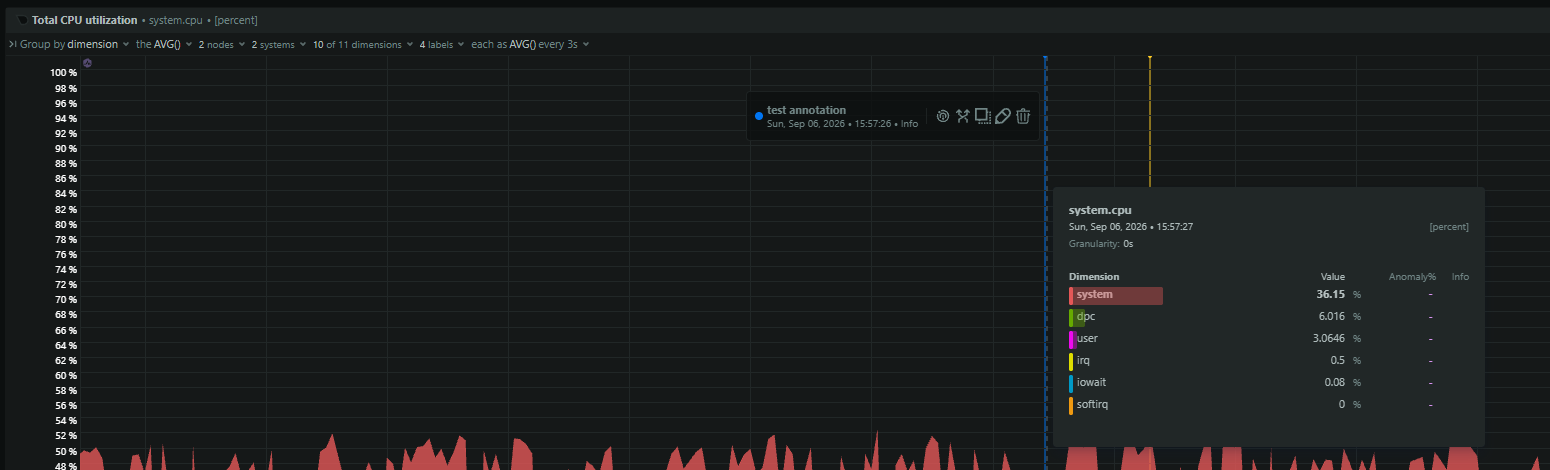



Your application latency just spiked. p99 response times doubled or tripled. CPU dashboards show the container at 40% utilization. Memory is fine. Network is quiet. You restart the container, redeploy, or blame the code, but the pattern repeats.
The culprit is often CPU throttling. Docker uses Linux CFS bandwidth control to enforce CPU limits in discrete 100ms periods. A container can exhaust its quota in a burst, spend the rest of each period throttled by the kernel, and still report a modest average CPU over a longer window. This guide shows how to confirm throttling from cgroup metrics, calculate its severity, and fix it without guessing.
What This Means
Linux CFS bandwidth control enforces CPU limits per cgroup using a default 100ms period. If a container has a quota equivalent to 0.5 CPU, it gets 50ms of CPU time per 100ms period. A latency-sensitive application that bursts to use those 50ms in the first 10ms of the period will be throttled for the remaining 90ms. The kernel pauses the container’s processes. Average CPU utilization across a longer window looks low, but tail latency explodes because requests arriving during the throttled window stall.
Monitoring tools that aggregate CPU over 30 or 60 seconds smooth out these 100ms windows entirely. A container that bursts to 100% for 50ms and then idles for 950ms reports 5% average CPU, yet with a quota of 0.25 CPUs (25ms per 100ms period), the kernel throttles it for 75ms during each period it has work to do. The result is a container that appears underutilized on dashboards while its application stalls.
Multi-threaded runtimes make this worse. A JVM with multiple GC threads can burn an entire period’s quota during a collection pause. The container does not crash. It just runs slowly, unpredictably, and intermittently. Because docker stats reports CPU percentage as an average over its sampling window, it will not reveal the throttling. You need the cgroup cpu.stat counters to see it.
flowchart LR
    A[Bursty workload] --> B{100ms CFS period}
    B -->|Exhausts quota early| C[Kernel throttles container]
    C --> D[p99 latency spikes]
    D --> E[Health check timeouts]
    E --> F[Container restarts]
Common Causes
| Cause | What it looks like | First thing to check |
|---|---|---|
| CPU limit set from average usage without burst headroom | Moderate average CPU, high p99 latency | cpu.stat nr_throttled climbing |
| GC pauses in multi-threaded runtimes | Periodic latency spikes aligned with collection cycles | Throttling percentage spikes during GC |
| CPU limits copied from dev to prod | Latency appears after deployment to larger traffic | Container CPU quota versus actual request rate |
| Bursty background tasks or health checks | Probe timeouts, slow cron tasks, intermittent errors | Throttle percentage during batch execution |
Quick Checks
Read cgroup v2 cpu.stat directly.
# Check throttling counters for a container (cgroup v2)
CONTAINER_ID=$(docker inspect --format '{{.Id}}' <container_name>)
cat /sys/fs/cgroup/system.slice/docker-${CONTAINER_ID}.scope/cpu.stat
Look for nr_periods, nr_throttled, and throttled_usec. If nr_throttled is nonzero and increasing, the container is actively throttled. On cgroup v1, read /sys/fs/cgroup/cpu,cpuacct/docker/<container_id>/cpu.stat and look for throttled_time.
Calculate throttle percentage.
# Calculate throttle percentage from cpu.stat
cat /sys/fs/cgroup/system.slice/docker-<CONTAINER_ID>.scope/cpu.stat | \
  awk '/nr_periods/ {p=$2} /nr_throttled/ {t=$2} END {if(p>0) printf "%.1f%%\n", (t/p)*100}'
Values above 5% are noticeable in latency-sensitive applications. Above 25% explains significant p99 degradation. Above 50% means the limit is too low for the workload.
Query the Docker API for throttling data.
# Query Docker API for throttling counters
curl -s --unix-socket /var/run/docker.sock \
  "http://localhost/containers/<container_id>/stats?stream=false" | \
  jq '.cpu_stats.throttling_data'
throttled_time is cumulative nanoseconds. A rising value confirms active throttling.
Check CPU usage for context.
# View CPU percentage (context only, does not show throttling)
docker stats --no-stream --format "table {{.Name}}\t{{.CPUPerc}}"
If CPU percentage is moderate (30-70%) but application latency is high, suspect throttling rather than CPU saturation.
Correlate with GC logs.
# Check container logs for stop-the-world pauses
docker logs <container_id> 2>&1 | grep -iE "gc|pause"
If GC times align with latency spikes, the runtime’s threads are likely exhausting the quota in a burst.
How To Diagnose It
- Confirm throttling is present. Check
cpu.statfornr_throttled. If it is zero, the issue is elsewhere. If it is increasing, the container is hitting its CFS quota. - Calculate severity. Use
nr_throttled / nr_periods * 100. Under 5% suggests minor impact. Over 25% means the container is stalled for a quarter of every scheduling interval, and tail latency will suffer. - Correlate with application latency. Look at p95 or p99 latency metrics. Throttling causes bursty latency that aligns with CFS period boundaries, not gradual slowdown. Sharp, irregular spikes that do not correlate with traffic are typical.
- Check CPU usage percentage. If
docker statsshows usage well below 100% of the limit but throttling is present, the limit is too low for the workload’s burst profile. The problem is the quota, not the code. - Identify the burst source. For JVMs, check GC logs for stop-the-world pauses. For other runtimes, look for batch flushes, health checks, or timer-driven tasks that spike CPU. Look for cron jobs, cache flushes, and connection pool reaping inside the container. If these align with throttling counters, either move them to a separate container or increase the quota to accommodate the burst.
- Check for secondary effects. Throttling can cause health check timeouts, which may lead orchestrators to mark the container unhealthy or restart it. Check
docker inspecthealth state and probe failure timestamps. - Validate with a temporary limit increase. Use
docker update --cpusto raise the limit. If latency normalizes within minutes, throttling was the cause.
Metrics & Signals To Monitor
| Signal | Why it matters | Warning sign |
|---|---|---|
cpu.stat nr_throttled | Count of periods where quota was exhausted | Any sustained increase over time |
cpu.stat throttled_usec (v2) or throttled_time (v1) | Total time the kernel paused the container | Value growing between checks |
Throttle percentage (nr_throttled / nr_periods) | Direct severity of throttling | > 5% for latency-sensitive workloads; > 25% is severe |
| Container CPU usage % | Distinguishes throttling from true CPU saturation | Moderate usage plus high throttling indicates limit too low |
| Application p99 latency | User-visible impact of throttling | Spikes without corresponding traffic increase |
| Container restart count | Throttling can cause health check timeouts | Restarts increasing alongside throttling metrics |
| Health check status | Orchestration may kill throttled containers | Status flipping from healthy to unhealthy |
Fixes
If The Cause Is A Low CPU Quota
Increase the container’s CPU limit. For existing containers:
# Increase CPU limit to 1.5 CPUs
docker update --cpus 1.5 <container_id>
Tradeoff: Higher limits reduce throttling but increase noisy-neighbor risk on shared hosts. If you remove limits entirely, the container can burst freely but may starve other workloads. The correct fix is usually raising the limit to match the workload’s actual burst needs. The default CFS period is 100ms. In most cases you should leave this unchanged. Lengthening the period changes the enforcement window and can shift throttling timing, but it does not fix the underlying quota-to-demand mismatch.
For latency-critical services, consider using --cpuset-cpus to pin the container to specific physical cores. Without a separate --cpus quota, this avoids CFS bandwidth throttling.
If The Cause Is GC Or Multi-Threaded Bursts
For JVM workloads, restrict GC thread counts to match the container’s CPU limit. The JVM sizes GC threads to the host core count by default, which can exhaust a small quota instantly. Reduce parallel and concurrent GC threads so a single pause does not consume the entire period budget. For other runtimes, reduce worker pool sizes to match the constrained CPU budget.
If The Cause Is Bursty Background Tasks
Move batch work, health checks, or background flushes to separate containers with their own CPU limits. This prevents bursts from stealing the quota of the latency-sensitive main process. Alternatively, schedule batch containers at lower priority or during off-peak windows.
Prevention
- Set CPU limits based on burst requirements, not average usage. Average CPU over a 60-second window hides 100ms-scale bursts. Profile peak usage or set limits at least 2x the observed average for bursty workloads.
- Monitor
nr_throttledfrom day one. Any container with a CPU quota should have throttling visibility. Alert on throttle percentage above 5% for latency-sensitive services. - Size multi-threaded runtimes for the container. Restrict GC and worker threads to match the CPU quota so a single pause does not consume the entire period budget.
- Use
--cpuset-cpusfor critical services, without a separate--cpusquota. Pinning to cores avoids CFS bandwidth throttling by giving the container dedicated processors. - Keep health check intervals and timeouts generous enough to survive brief throttling windows. Aggressive probes combined with throttling create restart loops.
- Review CPU limits after every significant traffic increase. A limit that worked at low scale will throttle at high scale even if per-request CPU is constant.
- Add throttling checks to your deployment runbooks. Before declaring a service production-ready, verify that its
nr_throttledcount remains zero under expected load. If you use orchestrators that set CPU limits automatically, audit those values against real-world burst profiles rather than trusting defaults.
How Netdata Helps
Netdata collects container-level cgroup metrics including cpu.stat counters, so nr_throttled and throttled_time are visible per container without manual filesystem parsing.
- Correlate the
cpu.throttledchart with application latency metrics to confirm causation. - Set alarms on
nr_throttleddelta or throttle percentage to catch throttling before users report latency. - Use the Containers section to compare CPU utilization percentages against throttling counters side by side, making the “moderate CPU but high throttling” pattern obvious.
- Netdata reads cgroup metrics directly from the host, so you do not need to exec into containers or parse cgroup files manually during an incident.