













The default json-file logging driver captures every line a container writes to stdout and stderr and appends it to a file under /var/lib/docker/containers/. There is no size limit out of the box. A container with verbose logging, a stuck retry loop, or a crash spiral can grow its log file by gigabytes per day until the filesystem is full.
When /var/lib/docker fills, the impact is not limited to logging. Docker cannot create new containers, image pulls fail, running containers may error on writes, and the daemon can hang during storage operations. This article shows how to identify which containers are responsible, safely reclaim space without restarting workloads, and configure durable limits so the problem does not recur.
By the end, you will be able to correlate disk growth with specific containers, know when truncation is safe versus destructive, and choose between local rotation, daemon defaults, and external log shipping.
What This Means
Docker does not store container logs inside the container’s writable layer. The default json-file driver writes each log entry as a JSON object to /var/lib/docker/containers/<container-id>/<container-id>-json.log. The docker logs command and the API stream read directly from these files on the host filesystem.
Because the json-file driver does not set max-size or max-file by default, the log file grows indefinitely. The container does not need to be doing anything useful. A debugging application emitting stack traces, a health check script printing to stdout, or a restart loop that re-logs the same error on every cycle can all generate unbounded disk writes. The logs persist until the container is removed, even if it is stopped.
This is a storage exhaustion failure mode, not an application-level bug, though application behavior often triggers it. The disk belongs to the host, so the container’s cgroup limits do not protect you.
Common Causes
| Cause | What it looks like | First thing to check |
|---|---|---|
| Default json-file without log-opts | Single or multiple -json.log files consuming most of /var/lib/docker | find /var/lib/docker/containers/ -name '*-json.log' -exec ls -lh {} + |
| Application debug or error spam | Log file growing rapidly while the container is running | docker logs --tail 100 <container> to see message frequency |
| Restart loop with logged output | RestartCount increasing and log file bloating with repeated entries | docker inspect --format '{{.RestartCount}}' <container> |
| No external log pipeline | Logs accumulating locally because nothing ships them out | docker inspect --format '{{.HostConfig.LogConfig.Type}}' <container> |
| Long-running batch or CI containers | Exited containers left behind with large logs | docker ps -a --size and du -sh /var/lib/docker/containers/*/ |
Quick Checks
Run these read-only checks before making changes. They will show you whether logs are the actual disk consumer and which containers are responsible.
# Total space consumed by all container logs
du -sh /var/lib/docker/containers/

# Largest individual container log files (top 10)
find /var/lib/docker/containers/ -name '*-json.log' -exec ls -lhS {} + | head -10

# Check the logging driver and options for a running container
docker inspect --format '{{json .HostConfig.LogConfig}}' <container_id>

# Check the daemon-wide default logging configuration
cat /etc/docker/daemon.json | grep -A5 '"log-opts"'

# Show running containers with their restart counts
docker ps -q | xargs -I{} docker inspect --format '{{.Name}} {{.RestartCount}}' {}

# Measure log growth rate for a specific container (run twice, 60s apart)
ls -l /var/lib/docker/containers/<container_id>/<container_id>-json.log
If du shows the containers directory dominating /var/lib/docker, and the find command surfaces one or two massive -json.log files, you have confirmed log bloat as the primary consumer.
How To Diagnose It
Use this flow to move from disk alert to root cause.
- Confirm logs are the largest consumer. Run
du -sh /var/lib/docker/*/and compare thecontainersdirectory tooverlay2,volumes, andbuildkit. Ifcontainersis the biggest contributor, inspect the files inside. - Map large files to containers. The directory name under
/var/lib/docker/containers/is the full container ID. Cross-reference withdocker ps -a --format '{{.ID}}\t{{.Names}}'to identify the owner. A name likeweb-proxy-1tells you which workload to investigate. - Verify the logging driver. Run
docker inspect --format '{{.HostConfig.LogConfig}}' <id>. If the type isjson-fileandConfiglacksmax-size, the file will never rotate. If the type isjournaldorsyslog, the logs are not in-json.logand your disk issue is elsewhere. - Check for a restart loop. A container with a nonzero and rapidly increasing
RestartCountmay be dumping the same fatal error on every restart. Inspect the exit code:docker inspect --format '{{.State.ExitCode}}' <id>. Exit code 137 withOOMKilled: truepoints to memory, not logging, but the restart loop still fills logs. - Sample the log content. Use
docker logs --tail 100 <id>to see if the output is debug noise, repeated exceptions, or health check echoing. This tells you whether the fix is at the application level, the logging configuration, or both. - Check the daemon default. If many containers have no per-container log-opts, inspect
/etc/docker/daemon.json. Absence of alog-optsblock means every new container is created unbounded unless overridden at runtime.
flowchart TD
    A[Disk alert on /var/lib/docker] --> B{containers/ dominates disk?}
    B -->|Yes| C[Find largest json.log files]
    B -->|No| D[Investigate overlay2 volumes or buildkit]
    C --> E[Map ID to container name]
    E --> F{json-file with no max-size?}
    F -->|Yes| G{Restart loop or verbose app?}
    G -->|Restart loop| H[Fix root cause and remove container]
    G -->|Verbose app| I[Truncate now and reduce verbosity]
    F -->|No| J[Check other drivers or volume mounts]
    H --> K[Apply daemon.json log-opts for new containers]
    I --> K
Metrics & Signals To Monitor
| Signal | Why it matters | Warning sign |
|---|---|---|
| Container log file size | Direct measure of json-file bloat | Any single -json.log >1 GB without rotation |
| Docker Disk Usage (containers) | Aggregated writable layer and log size for all containers | docker system df shows container usage growing faster than image count |
| Container Restart Count | Restart loops generate repetitive logs | RestartCount increasing by more than 1 per hour |
Host disk usage on /var/lib/docker | Filesystem saturation breaks the daemon | Usage >80% sustained for 15 minutes |
| Container Block I/O write rate | Log flooding appears as high write throughput | Write rate >10x baseline with no traffic increase |
| Docker Daemon Errors | Log write failures may precede daemon hangs | Errors containing “no space left on device” in journalctl -u docker |
Fixes
Emergency Relief When Disk Is Critically Full
If /var/lib/docker is above 90% and you need space immediately:
- Do not delete a running container’s
-json.logfile. Docker holds an open file descriptor. Deleting the inode can leave the container in a broken state. - Truncate the file in place. This zeros the file while keeping the same inode and descriptor open. Docker’s writer may keep appending, but external truncation is unsupported and can break
docker logs -f.
# DESTRUCTIVE: zeros the log file. Emergency stopgap for running containers.
# Replace <container_id> with the full ID.
truncate -s 0 /var/lib/docker/containers/<container_id>/<container_id>-json.log
This is a stopgap. The container will begin filling the file again immediately if the underlying cause is not fixed.
If The Cause Is Unbounded json-file Configuration
Set rotation limits. The json-file driver supports max-size and max-file in daemon.json. Add this to /etc/docker/daemon.json and restart the daemon:
{
  "log-driver": "json-file",
  "log-opts": {
    "max-size": "10m",
    "max-file": "3"
  }
}
This applies only to containers created after the daemon restart. Existing containers keep their original logging configuration. You must recreate them to pick up the new defaults, or update them individually.
For a single container override:
docker run --log-opt max-size=10m --log-opt max-file=3 <image>
If The Cause Is Excessive Application Verbosity
Fix the application or its configuration. Redirect debug logs to stderr only in development, reduce health check output, or suppress stack traces from looped retries. If you cannot change the application quickly, apply stricter max-size limits or switch to the local driver to compress the output.
If The Cause Is A Restart Loop
A container that crashes and restarts repeatedly will rewrite the same fatal logs. See Docker container keeps restarting: causes, checks, and fixes. Temporarily stop the loop to prevent further log growth:
docker update --restart=no <container_id>
Then investigate the exit code and application logs.
If You Need Compression Or Lower Disk Overhead
Switch to the local logging driver. It stores binary-encoded logs and accepts the same max-size and max-file options, with automatic gzip compression on rotated segments. The tradeoff is that downstream tools expecting JSON lines from the json-file path will need to read via the Docker API or logging pipeline instead.
{
  "log-driver": "local",
  "log-opts": {
    "max-size": "10m",
    "max-file": "3"
  }
}
If Logs Must Be Retained For Compliance
Do not rely on local rotation as your only storage. Configure a logging pipeline using fluentd, syslog, or another supported driver to ship logs off the host before rotation deletes them. Local files then become a short-term buffer, not the source of truth.
Prevention
- Daemon defaults with log-opts. Setting
max-sizeandmax-fileindaemon.jsonbounds every new container’s local disk footprint from creation. - Explicit logging blocks in Compose and runbooks. Infrastructure-as-code should declare rotation limits so services do not silently inherit unbounded json-file behavior.
- Periodic cleanup of stopped containers. Logs persist until the container is removed. Pruning exited containers reclaims the disk space held by their
-json.logfiles. - Per-container write I/O monitoring. A container emitting hundreds of megabytes per hour to disk signals a verbose logger or retry loop even before log rotation triggers.
- Restart policy review. A container with
restart: alwaysthat cannot start successfully will generate logs indefinitely. Alert on restart count increases to catch loops early.
How Netdata Helps
- Disk saturation alerts: Netdata monitors the host filesystem usage for
/var/lib/dockerand can alert when headroom drops below safe thresholds, before the daemon hangs. - Container write I/O correlation: Per-container block I/O charts show which container is writing heavily to the host disk, helping you pinpoint the verbose logger without manually scanning file sizes.
- Restart count visibility: Netdata collects container state and restart metrics, letting you correlate disk growth with a crash-looping container.
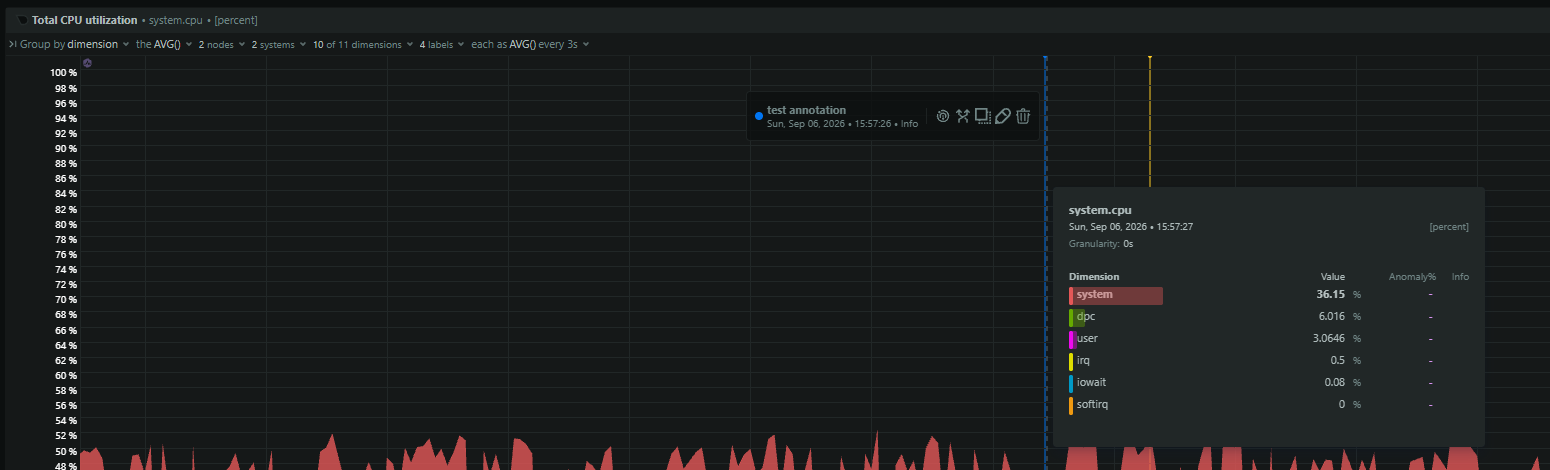
- Composite anomaly detection: Disk usage climbing alongside container restart counts and daemon error logs is a signature of log-driven storage exhaustion that Netdata can surface in one view.