













CrashLoopBackOff means a container in a Pod has terminated after starting, and the kubelet is delaying the next restart with exponential backoff. The status describes behavior, not root cause. Underlying failures include application panics, OOM kills, misconfigured liveness probes, missing secrets, or node-level resource pressure.
Use pod status, previous container logs, node conditions, and kubelet events to narrow the cause. Monitor restart rate, node pressure, and probe failures to catch loops before they degrade capacity.
What This Means
CrashLoopBackOff is the Waiting state reason reported by kubectl get pods when the kubelet delays the next restart attempt to avoid restart storms. For Deployments, the restart policy is Always, so any container termination triggers a restart. If the container cannot stay running, the kubelet enters the backoff loop.
The state is a symptom, not a diagnosis. The root cause lives in the container’s last termination reason, previous logs, node resource conditions, or probe configuration. The backoff delay starts at 10 seconds and doubles with each failure, up to the default cap of 300 seconds (five minutes). It resets after the container runs successfully for 10 minutes.
Common Causes
| Cause | What it looks like | First thing to check |
|---|---|---|
| Application error or misconfiguration | Exit code 1; stack traces or config errors in --previous logs | kubectl logs <pod> --previous |
| OOM kill | Last State: OOMKilled; exit code 137; node may show MemoryPressure | kubectl describe pod and node memory conditions |
| Liveness probe failure | Events show Unhealthy; container restarts without crash logs | Probe config in pod spec and application health endpoint |
| Missing dependency or secret | Container exits immediately; volume or env errors in events | kubectl describe pod events and volume mounts |
| Node resource pressure | Eviction events, DiskPressure/MemoryPressure, or system OOM kills | kubectl describe node and dmesg |
| Read-only filesystem or permission error | Silent exit with no stack trace; app cannot write required path | --previous logs for permission denied errors |
Quick Checks
# Confirm the waiting reason and last exit code
kubectl get pod ${POD_NAME} -o jsonpath='{.status.containerStatuses[0].state.waiting.reason}{"\n"}{.status.containerStatuses[0].lastState.terminated.exitCode}{"\n"}'

# Inspect the last terminated container's logs
kubectl logs ${POD_NAME} -c ${CONTAINER_NAME} --previous

# Check pod events for probe failures, mount errors, or back-off messages
kubectl get events --field-selector involvedObject.name=${POD_NAME}

# Check node conditions for pressure that may be evicting or starving the pod
kubectl describe node ${NODE_NAME} | grep -E "MemoryPressure|DiskPressure|PIDPressure"

# Look for system-level OOM kills that preceded the container restart
dmesg -T | grep -i "out of Memory\|oom-killer"

# Compare pod resource usage against its limits (requires metrics-server)
kubectl top pod ${POD_NAME} -n ${NAMESPACE}

# Check if image pull or volume mount errors preceded the crash loop
kubectl describe pod ${POD_NAME} | grep -A 5 "Events:"

# Verify liveness and startup probe configuration
kubectl get pod ${POD_NAME} -o jsonpath='{.spec.containers[0].livenessProbe}{"\n"}{.spec.containers[0].startupProbe}{"\n"}'
How To Diagnose It
- Identify the failing container and node. Note which container is in CrashLoopBackOff and which node it is running on. If the pod has multiple containers, the status block names the failing container.
- Check the last terminated state.
kubectl describe podshows the exit code, signal, and reason underLast State.OOMKilledmeans memory limits or node pressure. Exit code 1 indicates an application-level error. Exit code 137 means SIGKILL, which includes OOM but can also be an explicit kill. - Read the previous container logs.
kubectl logs --previousshows application panics, missing files, or connection errors. If the logs are empty, the container may have crashed before initializing logging or the image entrypoint may be wrong. - Read the pod events. The events block in
kubectl describe podincludes kubelet messages about probe failures, volume mount problems, image pull issues, and back-off timing. Probe failures often appear here even when application logs look clean. - Check node conditions. A node with
MemoryPressure,DiskPressure, orPIDPressureevicts or starves pods. Even without explicit eviction, memory pressure increases the chance of cgroup or system OOM kills. - Check for node-level OOM kills. Run
dmesgon the node. If the kernel OOM killer fired, it may have killed the container process or a dependent process. This happens when actual memory usage on the node exceeds allocatable memory, even if individual container limits are not breached. - Evaluate probe configuration. If the events show
Unhealthyliveness probe failures, compare the probe’sinitialDelaySeconds,timeoutSeconds, andfailureThresholdto the application’s actual startup time. A missingstartupProbecan cause liveness probes to kill a slow-starting container before it finishes initialization. - Check resource limits versus usage. If the container is OOMKilled, verify whether the memory limit is simply too low or whether the application has a leak. If the container is not OOMKilled but the node has memory pressure, the application may be failing due to memory starvation or throttling.
- Check for volume and image issues. If logs are absent and the exit code is non-descriptive, look for
FailedMountorFailedAttachVolumeevents. A container that cannot write to a read-only root filesystem or a projected volume that failed to mount exits immediately without application logs. - Correlate with runtime and kubelet health. If multiple pods on the same node are in CrashLoopBackOff simultaneously, check kubelet logs, container runtime responsiveness (
crictl info), and PLEG relist duration. Runtime slowness can cause probes to time out and containers to be restarted.
flowchart TD
    A[Pod status: CrashLoopBackOff] --> B{Describe pod: Last State reason?}
    B -->|OOMKilled| C[Check memory limits & node pressure]
    B -->|Error / Exit code 1| D[Read --previous logs]
    B -->|Killing / Unhealthy| E[Check liveness probe config & app health endpoint]
    D --> F{Logs present?}
    F -->|Yes| G[Fix application or config error]
    F -->|No| H[Check image pull & volume mount events]
    E --> I{Probe fails immediately?}
    I -->|Yes| J[Add startupProbe or increase initialDelaySeconds]
    I -->|No| K[Check resource pressure & runtime latency]
    C --> K
    H --> K
    K --> L[Check node conditions & dmesg]
Metrics & Signals To Monitor
| Signal | Why it matters | Warning sign |
|---|---|---|
| Container restart rate | Restart storms destabilize service capacity | Restart count increases by more than 5 in 10 minutes |
| OOM kill events | Cgroup or system OOM kills produce CrashLoopBackOff | lastState.terminated.reason equals OOMKilled or dmesg shows OOM kills |
| Liveness and readiness probe failures | Probe failures trigger restarts independent of application crashes | prober_probe_total failures increase, or events show Unhealthy |
| Node MemoryPressure and DiskPressure | Pressure causes evictions and OOM kills that appear as pod crashes | Node condition MemoryPressure or DiskPressure is True |
| Pod startup latency | Slow-starting containers are killed by probes before initialization finishes | kubelet_pod_start_duration_seconds p99 above 30 seconds |
| CPU throttling | Throttled containers may miss probe deadlines | container_cpu_cfs_throttled_periods_total ratio above 25% sustained |
| Image pull errors | Image pull failures block pod starts and can masquerade as crashes | Pods in ImagePullBackOff or CRI pull image errors increase |
| Volume mount latency | Stuck mounts block container startup and can trigger probe timeouts | storage_operation_duration_seconds above 2 minutes or pods stuck in ContainerCreating |
Fixes
If The Cause Is Application Error Or Misconfiguration
Fix the code, configuration file, environment variable, or secret reference. Use kubectl logs --previous to identify the exact error. Validate changes in staging before rolling out. If the error is a missing command-line flag or bad entrypoint, correct the container args or the Dockerfile CMD.
If The Cause Is OOM Kill
Raise the container memory limit if the working set is legitimately larger than the limit. If the application has a memory leak, fix the leak rather than endlessly raising the limit. For JVM workloads, ensure the heap size leaves headroom for native memory and thread stacks inside the container limit. If the node itself is under MemoryPressure, cordon the node and drain workloads to relieve pressure. Drain is disruptive; plan for pod rescheduling.
If The Cause Is Liveness Probe Failure
Separate liveness from readiness checks. Liveness should detect deadlocks, not temporary load. Add a startupProbe if the application takes longer than the liveness probe’s initial delay to become healthy. Increase timeoutSeconds if the health endpoint is slow, but ensure the endpoint itself is lightweight. Do not point liveness probes at downstream dependencies.
If The Cause Is Node Resource Pressure
Identify the pressure signal: memory, disk, or PID. For disk pressure, clean up container logs, unused images, and orphaned volumes. For memory pressure, evict or reschedule heavy pods, or scale the node pool. Set kube-reserved and system-reserved so the eviction manager has accurate headroom calculations.
If The Cause Is Missing Dependency Or Volume
Verify that ConfigMaps, Secrets, and persistent volumes referenced in the spec exist and are bound. Check that projected volumes are mounting correctly and that the application has permissions to read them. If the container needs a writable path, ensure the volume is mounted at the correct path and that the security context allows writes.
If The Cause Is Image Issue
Use explicit image tags instead of latest to avoid silent binary mismatches. Verify the image architecture matches the node architecture. If the image is missing shared libraries, rebuild the image or use a base image that includes the required dependencies.
Prevention
- Set realistic resource requests and limits based on measured usage profiles, not guesses. Revisit them after every major release.
- Use startup probes for any container that needs more than a few seconds to initialize. Gate liveness probes behind the startup probe.
- Keep liveness probes simple and independent of external services. A liveness probe should fail only when the process itself is deadlocked.
- Monitor node pressure conditions proactively. Memory and disk pressure cause cascading restarts that look like application failures.
- Rotate container logs and limit emptyDir size to prevent disk pressure from silently evicting pods.
- Validate pod specs in CI for missing volume mounts, incorrect secret names, and broken image references before they reach the cluster.
- Configure PodDisruptionBudgets to prevent node maintenance or autoscaling events from concentrating pods and causing resource pressure spikes.
How Netdata Helps
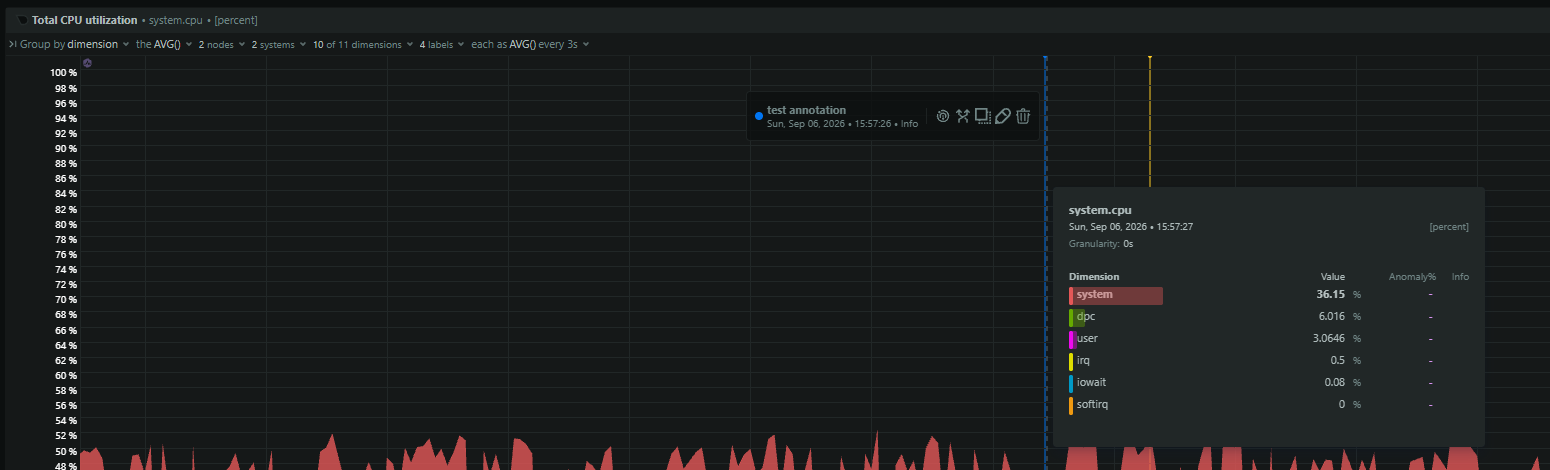
- Correlates pod restart spikes with node-level memory pressure, disk I/O latency, and CPU throttling to distinguish app bugs from infrastructure saturation.
- Surfaces OOM kill events and per-cgroup memory usage versus limits without manual
kubectlanddmesgqueries across nodes. - Shows container runtime operation latency and PLEG relist duration to identify kubelet or runtime slowness causing probe timeouts.
- Tracks per-container CPU throttling rates and disk wait times to reveal resource contention that triggers health-check failures.
- Alerts on node conditions such as
MemoryPressureandDiskPressurebefore they cascade into eviction loops.
Related guides
- Kubernetes pod ImagePullBackOff: registry, auth, and network diagnosis
- Kubernetes pod OOMKilled: cgroup limits, evictions, and fixes
- Kubernetes pod stuck Pending: scheduling failures explained
- Kubernetes pod stuck ContainerCreating: volume, network, and image issues
- Kubernetes pod exits immediately: how to diagnose it
- Kubernetes pod stuck Terminating: finalizers, grace periods, and force delete
- Kubernetes pod Evicted: detection, root cause, and prevention
- Kubernetes pod creation fails: admission, quota, and CRI errors
- Kubernetes pod readiness probe failures: traffic exclusion and debug
- Kubernetes pod liveness probe killing healthy containers
- Kubernetes init container fails: blocking main container start
- Kubernetes monitoring checklist: the signals every production cluster needs