










Sudden SSO login failures. ESXi hosts flipping to “Not Responding” without a network cause. Certificate validation errors on certificates you know are valid. All three point to clock skew between vCenter, ESXi, and the identity infrastructure they depend on.
SAML token validation, certificate validation, Kerberos, HA heartbeats, and log correlation all assume clocks agree. When they diverge, the failures look like unrelated problems instead of one root cause. Nobody thinks to check the clock.
The vCenter Single Sign-On STS defines a hard clock tolerance of 10 minutes for SAML token validation (Broadcom vSphere SSO programming guide); symptoms below that limit are version- and service-dependent.
The thresholds are unforgiving. An offset greater than 30 seconds can cause intermittent SSO authentication failures. At 5 minutes, Kerberos breaks outright and ESXi hosts can disconnect from vCenter. Host-to-host skew above 5 minutes also blocks vMotion.: the vMotion compatibility alert is “Too large clock skew was detected” when host-to-host skew exceeds five minutes (Broadcom KB 397777).
What this means
Clock skew breaks vSphere through several interdependent mechanisms. The vCenter Single Sign-On Security Token Service (STS) validates SAML tokens within a clock tolerance window. When the VCSA clock drifts outside that window relative to the token issuer or the client requesting the token, validation fails. Kerberos has its own 5-minute tolerance by default. Certificate validation fails when a clock reads a time before the certificate’s “not before” date or after its “not after” date, producing “certificate not yet valid” errors on certificates that are fine.
ESXi hosts disconnect because their management agent communication with vCenter depends on timing-critical heartbeat and authentication exchanges. When the skew exceeds what the vpxa-to-vpxd channel can tolerate, the host appears “Not Responding” even though VMs on it continue running normally.
The failure cascade looks like this:
flowchart TD
  A[NTP offset grows] --> B{Magnitude}
  B -->|> 30s| C[Intermittent SSO token failures]
  B -->|> 5 min| D[Kerberos auth rejects]
  B -->|> 5 min host-to-host| E[vMotion compatibility alert]
  D --> F[ESXi hosts disconnect]
  C --> G[LOGIN_FAILED in STS logs]
  A --> H[Certificate not-yet-valid errors]
Common causes
| Cause | What it looks like | First thing to check |
|---|---|---|
| NTP source unreachable | Offset grows steadily; chronyc sources shows no synced source | Firewall on UDP 123, DNS resolution of NTP server names, NTP server availability |
| VMware Tools time sync fighting NTP on VCSA | VCSA clock reverts to host time after each sync cycle; NTP appears configured but offset persists | VCSA VM settings: “Synchronize guest time with host” checkbox |
| Snapshot revert set the clock back | Offset appears suddenly after a revert operation; clock reads the snapshot’s creation time | Recent snapshot revert events; compare date -u to known-good time |
| Circular NTP dependency on AD | When AD DCs are unreachable, both auth and time break simultaneously; recovery requires fixing AD first | NTP server config: are all sources AD domain controllers? |
| NTP not configured at all | timedatectl shows NTP service inactive; offset grows without bound | VAMI Time tab or /etc/chrony.conf (/etc/ntp.conf on older versions) |
Quick checks
All commands below are read-only and safe on production systems.
# VCSA: overall time sync state
timedatectl status

# VCSA: NTP tracking (vSphere 7+ uses chrony)
chronyc tracking
chronyc sources -v

# VCSA: older versions (pre-7) use ntpd
ntpq -p

# VCSA: compare current time to known-good external time
date -u

# VCSA: NTP servers configured in chrony
grep ^server /etc/chrony.conf

# VCSA: check whether VMware Tools time sync is overriding NTP
vmware-toolbox-cmd timesync status

# VCSA: check NTP config via VAMI API (password will appear in shell history)
# The VAMI API authenticates with basic auth (root)
curl -sk -u 'root:' https://localhost:5480/rest/appliance/ntp

# ESXi host: system time and hardware clock
esxcli system time get
esxcli hardware clock get

# ESXi host: NTP peer status
ntpq -p

# VCSA: clock-skew-related SSO auth failures
grep -i "LOGIN_FAILED\|LW_ERROR_CLOCK_SKEW" /var/log/vmware/sso/vmware-sts-idmd.log | tail -20

# VCSA: certificate validation errors caused by time skew
grep -i "not.*yet.*valid\|certificate.*invalid" /var/log/vmware/vpxd/vpxd.log | tail -20
How to diagnose it
Measure the offset on the VCSA. Run
chronyc tracking(vSphere 7+) orntpq -p(older). Look at the “System time” or “offset” field. Above 5 seconds, investigate. Above 30 seconds, you are likely seeing intermittent auth failures. Above 300 seconds, Kerberos is broken and hosts may be disconnecting.Check NTP source reachability. Run
chronyc sources -v. A healthy config shows at least one source marked*(current sync source). If all sources show?(unreachable) or the reach column is 0, check firewall rules for UDP 123, DNS resolution of NTP server hostnames, and connectivity to the NTP servers.Compare clocks across the stack. Check the VCSA clock (
date -u), the ESXi host clock (esxcli system time geton each host), and your AD domain controller clocks. The skew that matters is between these components. A VCSA and its ESXi hosts could all agree on the wrong time and still function, as long as the skew between them stays within tolerance.Correlate with SSO failures. Check
/var/log/vmware/sso/vmware-sts-idmd.logforLOGIN_FAILEDentries andLW_ERROR_CLOCK_SKEWerrors. If these spike when the offset grows, clock skew is the root cause, not a credential or certificate problem.Check for VMware Tools time sync conflict. Run
vmware-toolbox-cmd timesync statusinside the VCSA. If it reports enabled, the ESXi host clock periodically overrides the VCSA’s NTP-synced time. This is a common cause of persistent, unexplained drift.Look for recent snapshot reverts. A snapshot revert sets the guest clock back to the snapshot’s creation time. NTP then slews the clock gradually rather than stepping it, which can take minutes to hours for a large offset. Check vCenter Tasks for recent revert operations.
Metrics and signals to monitor
| Signal | Why it matters | Warning sign |
|---|---|---|
| NTP offset (VCSA and ESXi) | Silent prerequisite for SAML, Kerberos, certificate validation | > 30 seconds sustained warrants investigation; > 5 minutes is an emergency |
| NTP source reachability | Unreachable sources mean the clock drifts without correction | No source marked * in chronyc sources; reach column at 0 |
| SSO authentication failure rate | Correlates with offset growth; confirms auth impact | Spike in LOGIN_FAILED entries in vmware-sts-idmd.log |
| ESXi host connection state | Large skew disconnects hosts from vCenter | Hosts showing notResponding without network or hardware cause |
| Certificate validation errors | “Not yet valid” means the clock is behind real time | TLS errors in vpxd.log; integration failures from external systems |
| vMotion compatibility alerts | Host-to-host skew above 5 minutes blocks migrations | “Too large clock skew” alert between source and destination hosts |
| Log timestamp consistency | Skewed clocks make incident investigation impossible | Log entries from different components with impossible timestamp ordering |
Fixes
NTP source unreachable
Verify UDP 123 is open on firewalls between the VCSA, ESXi hosts, and NTP sources. Verify DNS resolution of NTP server names from the VCSA shell. If configured NTP servers are themselves down, reconfigure to reachable, authoritative sources. Use at least three sources for redundancy.
Configure NTP through the VAMI interface at https://<vcenter>:5480 under the Time tab for the VCSA. For ESXi hosts, configure NTP through vCenter host settings or the DCUI.
VMware Tools time sync conflicting with NTP
When the VCSA VM’s VMware Tools settings include “Synchronize guest time with host,” the ESXi host clock periodically overrides the VCSA’s NTP-synced time. If the host clock is wrong, the VCSA inherits the error, and NTP cannot stabilize.
Disable VMware Tools time synchronization on the VCSA VM. In the vSphere Client, edit the VCSA VM settings, expand VMware Tools, and uncheck the time synchronization options.
On older vSphere versions, a single “Synchronize guest time with host” checkbox controls all Tools time sync behavior. The VCSA should rely on its own NTP configuration, not the host clock.
Snapshot revert set the clock back
After a snapshot revert, the guest clock may be set to the snapshot’s creation time. NTP slews the correction gradually for moderate offsets, which can leave the VCSA with significant skew for an extended period.
For the VCSA’s chrony configuration (vSphere 7+), the makestep directive controls whether chrony steps the clock immediately instead of slewing. Check /etc/chrony.conf for the makestep setting. A configuration like makestep 1.0 3 tells chrony to step the clock if the offset exceeds 1 second, up to 3 times.
If the offset is very large and NTP is slewing too slowly, you can force an immediate step after confirming NTP sources are reachable and correct:
# WARNING: a large time jump can affect running transactions and active sessions.
# Confirm NTP sources are correct before running this.
chronyc sources    # verify at least one source is reachable
chronyc makestep   # force immediate clock step
On older VCSA versions using ntpd, restarting the service forces a resync:
systemctl restart ntpd
Circular NTP dependency
If the VCSA points exclusively at AD domain controllers for NTP, and those same DCs are the identity source for SSO, you have a circular dependency. When AD is down, both authentication and time synchronization fail simultaneously. Recovery requires fixing AD first, which itself may need time sync to be working.
Configure at least one NTP source that is not an AD domain controller. A dedicated NTP appliance, a network device that serves NTP, or a public stratum-1 or stratum-2 source provides a fallback when AD is unavailable. AD DCs can remain as additional sources, but should not be the only sources.
NTP not configured at all
Some environments deploy VCSA without configuring NTP, relying on the ESXi host clock via VMware Tools time sync. This works until the host clock drifts or the VCSA is vMotioned to a host with a different clock.
Configure NTP on the VCSA through VAMI, and on all ESXi hosts through vCenter. Verify after every patch, upgrade, or redeployment that NTP is still configured and functioning.
Prevention
- Monitor NTP offset continuously. Alert at > 30 seconds offset and page at > 5 minutes. Do not wait for an auth failure to discover the clock is wrong.
- Disable VMware Tools time sync on the VCSA VM. One-time fix that prevents the most common cause of persistent drift.
- Point NTP at non-AD sources. Use at least one dedicated NTP source outside the AD dependency chain so time and auth do not fail together.
- Verify NTP after maintenance. Patching, upgrading, and snapshot operations can disrupt NTP configuration or reset the clock.
- Check ESXi host NTP alongside VCSA NTP. Host-to-host skew breaks vMotion and can disconnect hosts even when the VCSA clock is correct.
- Audit NTP configuration after every VCSA redeployment or restore. File-based restores and new deployments start with default time settings.
How Netdata helps
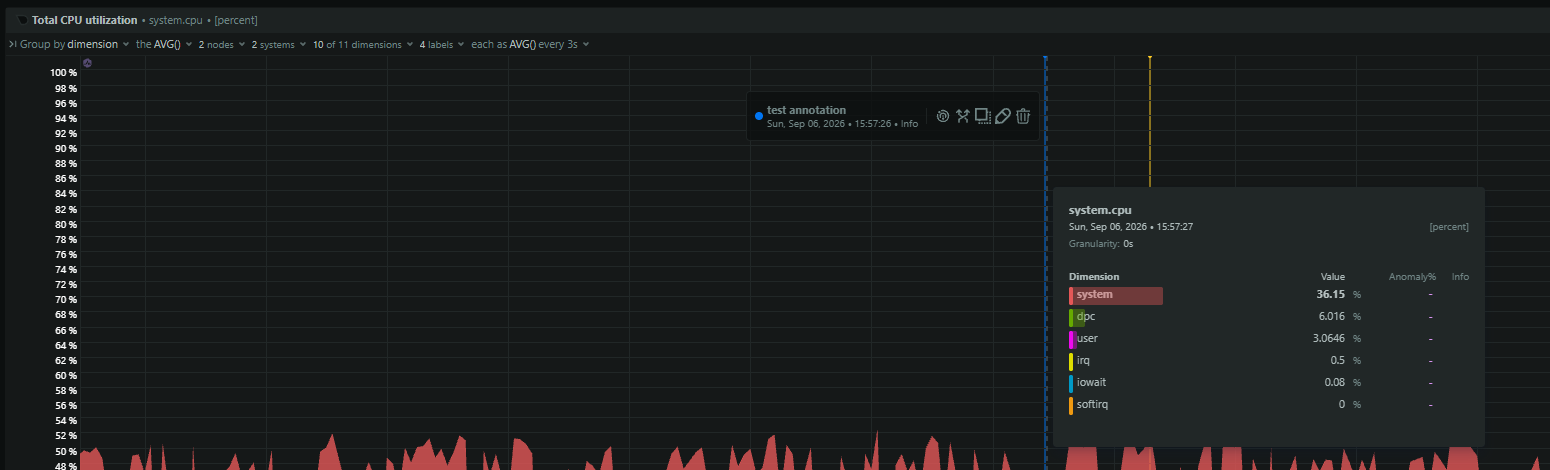
- Correlate NTP offset with SSO failure spikes. The chrony collector reports per-second NTP offset. When the VCSA offset crosses 30 seconds, overlaying it with
LOGIN_FAILEDrates from the STS logs (via the systemd journal collector) makes the causal relationship visible in seconds instead of hours of log diving. - Track ESXi host clocks alongside connection state. A host transitioning to
notRespondingat the same moment its NTP offset spikes points directly at clock skew rather than a network or hardware fault. - Catch drift before it breaks auth. Per-second offset collection means you see the drift trend building, not just the moment it crosses the Kerberos or SAML threshold.
- Distinguish certificate errors from clock errors. “Certificate not yet valid” in
vpxd.logcorrelated with a growing NTP offset confirms the clock is the problem, not the certificate. This prevents unnecessary certificate renewal. - Monitor post-maintenance time sync recovery. After a VCSA reboot, patch, or snapshot revert, watching the NTP offset return to baseline confirms recovery without manual verification.
Related guides
- vSphere active vs consumed vs granted memory: why the percentage lies
- vSphere CPU co-stop high (%CSTP): the SMP vCPU co-scheduling penalty
- vSphere CPU limit hit (%MLMTD): the forgotten MHz cap that silently throttles a VM
- vSphere CPU ready time high (%RDY): VMs starved while the guest looks idle
- vSphere datastore full: ‘No space left on device’, paused VMs, and power-on failures
- vSphere datastore IOPS and throughput: spotting storage saturation before latency bites
- vSphere datastore latency high: reading GAVG, DAVG, and KAVG
- vSphere dropped packets (%DRPRX/%DRPTX): ring buffers, CPU, and uplink backpressure
- vSphere DRS not balancing: affinity rules and reservations blocking placement
- vSphere DRS thrashing: vMotion churn with no stable placement
- vSphere storage latency cliff: the ’everything is slow’ incident that hits every VM at once
- vSphere HA host isolation and split-brain: when isolation response goes wrong